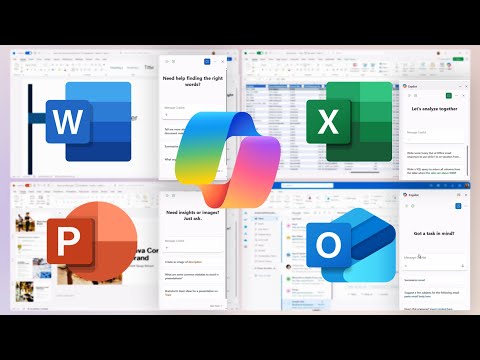
If your company uses Microsoft 365 — Outlook, Word, Excel, or Teams — you may already have access to Copilot, Microsoft's AI assistant built right into those apps. Most people have it available and don't know it. This guide covers exactly what to try in your first week, without any technical setup required.
Watch: Copilot in Action Across Microsoft 365
Check If You Already Have It
Open Outlook or Word. Look for a small Copilot sparkle icon (✨) in the toolbar. If you see it — you have access. If not, ask your IT department whether your organization has a Microsoft Copilot license, or use the standalone Copilot at copilot.microsoft.com (free for personal use).
The 3 Features Worth Using Immediately
1. Email Thread Summary in Outlook
Right-click any long email thread and click "Summarize with Copilot." You get the key points and action items in about 10 seconds — no reading through 15 replies required. This alone is worth learning Copilot for.
2. Meeting Recap in Teams
After any Teams meeting, Copilot automatically writes a summary with the decisions made and next steps assigned to each person. Share it with attendees in 30 seconds. No more "can someone send notes from that call?"
3. Word Draft Starter
In any Word document, click the Copilot icon and describe what you need to write — a report, a proposal, an agenda, a policy document. It gives you a structured first draft to edit, not stare at a blank page for 20 minutes.
How to Get Good Results from Copilot
The more context you give, the better the output. Instead of "write a summary," say "summarize this email thread for my manager who wasn't on the original chain — focus on what decision was made and what I need to do next." Specific instructions get specific, useful results.
A Note on Privacy
Microsoft Copilot in your work apps only sees data within your organization's Microsoft tenant — it doesn't send your work emails or documents to third parties. For sensitive work, your IT or security team can confirm what data policies apply at your company.
✅ Try It Now
Open Outlook and find the longest email thread in your inbox from the past week. Click the Copilot "Summarize" button. Read what it produces. That 4-minute email chain just became a 20-second scan. Do this for your next 10 emails and you'll never go back.